


Gmail connector
OAuth 2.0CommunicationGmail is Google's cloud based email service that allows you to access your messages from any computer or device with just a web browser.
Gmail connector
-
Install the SDK
Section titled “Install the SDK”Terminal window npm install @scalekit-sdk/nodeTerminal window pip install scalekit -
Set your credentials
Section titled “Set your credentials”Add your Scalekit credentials to your
.envfile. Find values in app.scalekit.com > Developers > API Credentials..env SCALEKIT_ENVIRONMENT_URL=<your-environment-url>SCALEKIT_CLIENT_ID=<your-client-id>SCALEKIT_CLIENT_SECRET=<your-client-secret> -
Set up the connector
Section titled “Set up the connector”Register your Gmail credentials with Scalekit so it handles the token lifecycle. You do this once per environment.
Dashboard setup steps
Register your Scalekit environment with the Gmail connector so Scalekit handles the authentication flow and token lifecycle for you. The connection name you create will be used to identify and invoke the connection programmatically. Then complete the configuration in your application as follows:
-
Set up auth redirects
-
In Scalekit dashboard, go to AgentKit > Connections > Create Connection. Find Gmail and click Create.
-
Click Use your own credentials and copy the redirect URI. It looks like
https://<SCALEKIT_ENVIRONMENT_URL>/sso/v1/oauth/<CONNECTION_ID>/callback.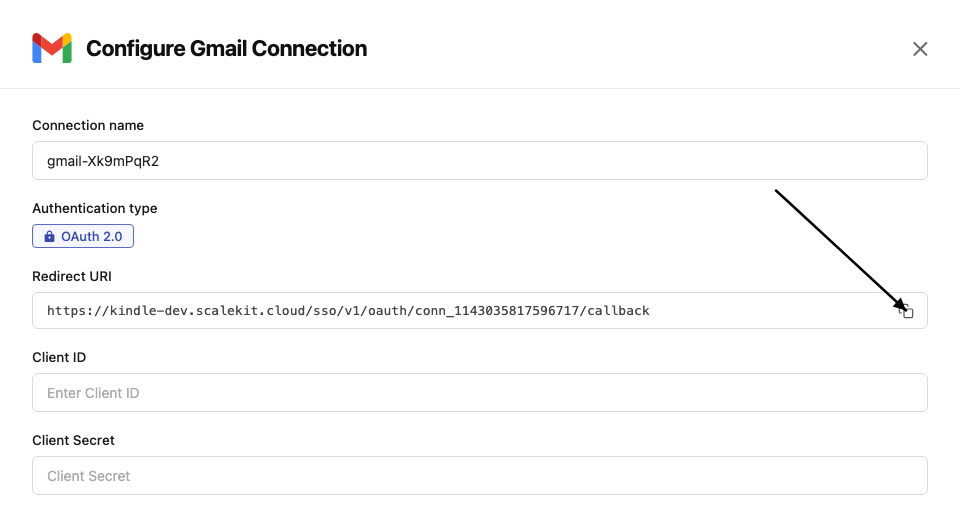
-
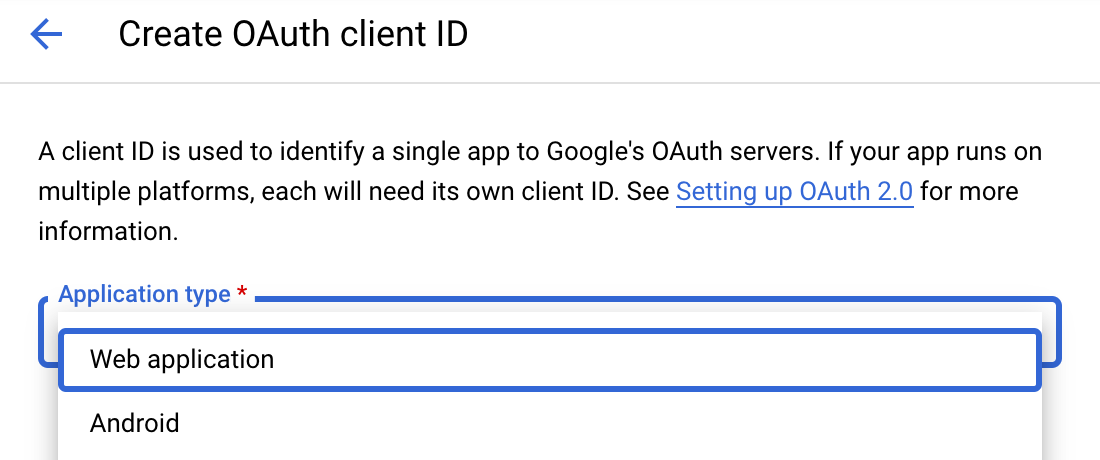
Navigate to Google Cloud Console → APIs & Services → Credentials. Click + Create Credentials, then OAuth client ID. Choose Web application as the application type.
-
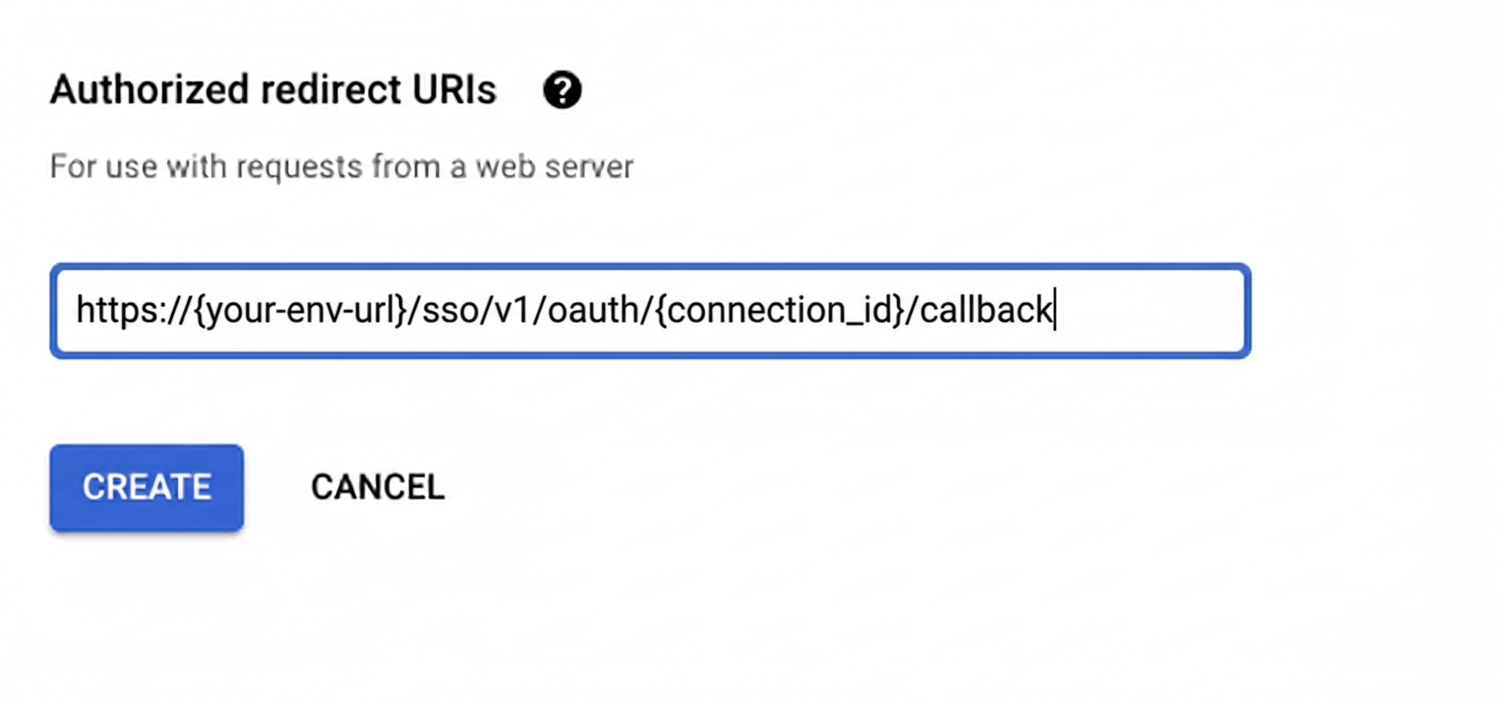
Under Authorized redirect URIs, click + Add URI, paste the redirect URI, and click Create.
-
-
Enable Gmail API
-
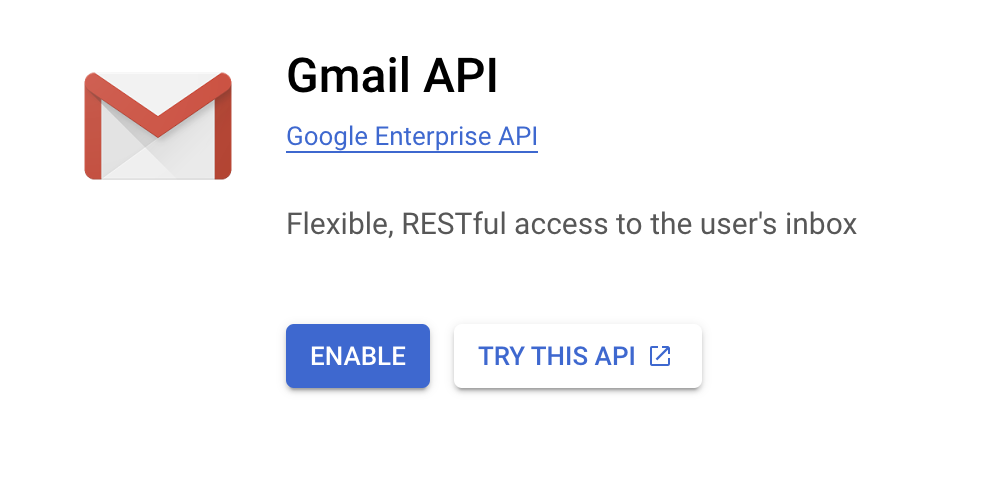
In Google Cloud Console, go to APIs & Services → Library. Search for “Gmail API” and click Enable.
-
-
Get client credentials
Google provides your Client ID and Client Secret after you create the OAuth client ID in step 1.
-
Add credentials in Scalekit
-
In Scalekit dashboard, go to AgentKit > Connections and open the connection you created.
-
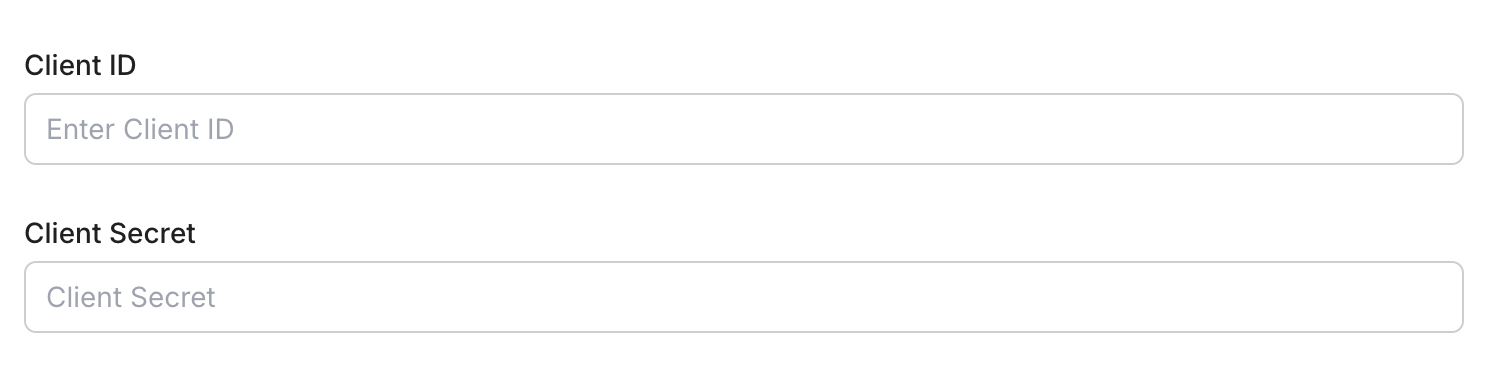
Enter your credentials:
- Client ID (from above)
- Client Secret (from above)
- Permissions (scopes beginning with
gmail— see Google API Scopes reference)
-
Click Save.
-
-
-
Authorize and make your first call
Section titled “Authorize and make your first call”quickstart.ts import { ScalekitClient } from '@scalekit-sdk/node'import 'dotenv/config'const scalekit = new ScalekitClient(process.env.SCALEKIT_ENV_URL,process.env.SCALEKIT_CLIENT_ID,process.env.SCALEKIT_CLIENT_SECRET,)const actions = scalekit.actionsconst connector = 'gmail'const identifier = 'user_123'// Generate an authorization link for the userconst { link } = await actions.getAuthorizationLink({ connectionName: connector, identifier })console.log('Authorize Gmail:', link)process.stdout.write('Press Enter after authorizing...')await new Promise(r => process.stdin.once('data', r))// Make your first callconst result = await actions.executeTool({connector,identifier,toolName: 'gmail_fetch_mails',toolInput: {},})console.log(result)quickstart.py import osfrom scalekit.client import ScalekitClientfrom dotenv import load_dotenvload_dotenv()scalekit_client = ScalekitClient(env_url=os.getenv("SCALEKIT_ENV_URL"),client_id=os.getenv("SCALEKIT_CLIENT_ID"),client_secret=os.getenv("SCALEKIT_CLIENT_SECRET"),)actions = scalekit_client.actionsconnection_name = "gmail"identifier = "user_123"# Generate an authorization link for the userlink_response = actions.get_authorization_link(connection_name=connection_name,identifier=identifier,)print("Authorize Gmail:", link_response.link)input("Press Enter after authorizing...")# Make your first callresult = actions.execute_tool(tool_input={},tool_name="gmail_fetch_mails",connection_name=connection_name,identifier=identifier,)print(result)
What you can do
Section titled “What you can do”Connect this agent connector to let your agent:
- Read emails — fetch messages, threads, and attachments from any label or inbox
- Send and reply — compose new emails and reply to existing threads on behalf of your users
- Search messages — query Gmail with full search syntax to find emails by sender, subject, or content
- Manage labels — apply, remove, and list labels to organize messages
- Access contacts — look up contacts and people from the user’s address book
Common workflows
Section titled “Common workflows”Use Gmail response fields as returned
Response fields from Gmail tools use camelCase, such as threadId, messageId, and internalDate. Tool input parameters use the snake_case names shown in the Tool list, such as thread_id and message_id. Extract values with camelCase, then pass them with snake_case.
const fetchResponse = await actions.executeTool({ connector: 'gmail', identifier: 'user_123', toolName: 'gmail_fetch_mails', toolInput: { query: 'is:unread', max_results: 5, },});
const messages = Array.isArray(fetchResponse.data?.messages) ? fetchResponse.data.messages : [];const threadId = typeof messages[0]?.threadId === 'string' ? messages[0].threadId : '';
if (threadId) { const threadResponse = await actions.executeTool({ connector: 'gmail', identifier: 'user_123', toolName: 'gmail_get_thread_by_id', toolInput: { thread_id: threadId, }, }); console.log(threadResponse.data);}fetch_response = actions.execute_tool( connection_name='gmail', identifier='user_123', tool_name="gmail_fetch_mails", tool_input={ "query": "is:unread", "max_results": 5, },)
data = fetch_response.data or {}messages = data.get("messages", [])thread_id = messages[0].get("threadId", "") if messages else ""
if thread_id: thread_response = actions.execute_tool( connection_name='gmail', identifier='user_123', tool_name="gmail_get_thread_by_id", tool_input={ "thread_id": thread_id, }, ) print(thread_response.data)Proxy API call
const result = await actions.request({ connectionName: 'gmail', identifier: 'user_123', path: '/gmail/v1/users/me/profile', method: 'GET',});console.log(result);result = actions.request( connection_name='gmail', identifier='user_123', path="/gmail/v1/users/me/profile", method="GET",)print(result)Google OAuth consent screen verification
Before you use your own Google OAuth credentials in production, understand what end users see on Google’s consent screen when they authorize a connected account.
| Audience type | Consent screen behavior | When to use |
|---|---|---|
| Internal | Shows your App Name and logo from Branding settings | Only users in your Google Workspace or Cloud Identity organization can authorize the connector |
| External | Shows {env_name}.scalekit.dev until Google verifies your app | Any user with a Google account can authorize the connector |
Why External is required for most AgentKit connectors:
- Internal restricts authorization to users in your Google Workspace or Cloud Identity organization. Users with
@gmail.comor other Google accounts outside your organization cannot complete OAuth. - External is required when end users outside your organization authorize tool access through connected accounts.
- Organization-managed OAuth clients follow the same rules as personal or developer OAuth clients. Switching to an org-owned client does not bypass Google verification.
- Until Google completes verification of your External app, users see
scalekit.devon the consent screen. After verification, your App Name and logo appear.
During development:
- Add Test users under APIs & Services → OAuth consent screen while publishing status is Testing.
- On unverified apps, users can click Advanced → Go to app (unsafe) to proceed during testing.
- Google Workspace admins may need to allowlist your OAuth client.
For Google’s verification requirements and timeline, refer to Google’s OAuth consent screen verification guide.
Tool list
Section titled “Tool list”Use the exact tool names from the Tool list below when you call execute_tool. If you’re not sure which name to use, list the tools available for the current user first.
gmail_create_draft#Create a new draft email in Gmail for the authenticated user. Constructs a MIME message and saves it as a draft. Supports plain text and HTML content types, CC, BCC, and threading. Uses OAuth credentials.9 params
Create a new draft email in Gmail for the authenticated user. Constructs a MIME message and saves it as a draft. Supports plain text and HTML content types, CC, BCC, and threading. Uses OAuth credentials.
bodystringrequiredThe body content of the draft email. Provide plain text or HTML depending on the content_type field. Example: 'Hello, this is my draft message.'subjectstringrequiredThe subject line of the draft email. Example: 'Meeting Follow-up'.tostringrequiredThe recipient email address(es) for the draft. Provide a single address or comma-separated list. Example: 'recipient@example.com' or 'a@example.com,b@example.com'.bccstringoptionalBCC recipients for the draft email. Provide a comma-separated list of email addresses, e.g., bcc1@example.com,bcc2@example.com. Optional.ccstringoptionalCC recipients for the draft email. Provide a comma-separated list of email addresses, e.g., cc1@example.com,cc2@example.com. Optional.content_typestringoptionalThe MIME content type for the email body. Use 'text/plain' for plain text or 'text/html' for HTML content. Defaults to 'text/plain'.schema_versionstringoptionalOptional schema version to use for tool executionthread_idstringoptionalThe Gmail thread ID to associate this draft with an existing conversation. If provided, the draft will be part of that thread. Example: '17a1b2c3d4e5f6g7'.tool_versionstringoptionalOptional tool version to use for executiongmail_create_filter#Create a new email filter for the authenticated Gmail account. Specify criteria (sender, recipient, subject, query, or attachment) and actions (apply labels, forward, archive, star, trash, mark as read, etc.). At least one criteria field should be provided. Uses OAuth credentials.17 params
Create a new email filter for the authenticated Gmail account. Specify criteria (sender, recipient, subject, query, or attachment) and actions (apply labels, forward, archive, star, trash, mark as read, etc.). At least one criteria field should be provided. Uses OAuth credentials.
add_label_idsarrayoptionalList of Gmail label IDs to apply to matching messages (e.g., ['Label_123', 'STARRED']). Use the List Labels tool to find valid label IDs.forwardstringoptionalEmail address to forward matching messages to. The address must already be configured as a forwarding address in the Gmail account.fromstringoptionalSender email address or domain to match in the filter criteria (e.g., 'alerts@github.com' or '@newsletter.com').has_attachmentbooleanoptionalIf true, only match messages that have at least one attachment.querystringoptionalGmail search query string to match messages using Gmail's search syntax (e.g., 'larger:10M', 'is:important').remove_label_idsarrayoptionalList of Gmail label IDs to remove from matching messages (e.g., ['INBOX'] to archive, ['UNREAD'] to mark as read).schema_versionstringoptionalOptional schema version to use for tool executionshould_always_mark_importantbooleanoptionalIf true, always mark matching messages as important regardless of Gmail's automatic importance detection.should_archivebooleanoptionalIf true, skip the inbox for matching messages (equivalent to adding the 'Archive' action).should_mark_readbooleanoptionalIf true, automatically mark matching messages as read.should_never_mark_importantbooleanoptionalIf true, never mark matching messages as important, overriding Gmail's automatic importance detection.should_never_spambooleanoptionalIf true, never send matching messages to the Spam folder.should_starbooleanoptionalIf true, automatically star matching messages.should_trashbooleanoptionalIf true, automatically move matching messages to the Trash.subjectstringoptionalSubject line text to match in the filter criteria (e.g., '[GitHub]' or 'Invoice').tostringoptionalRecipient email address to match in the filter criteria (e.g., 'team@example.com').tool_versionstringoptionalOptional tool version to use for executiongmail_fetch_mails#Fetch emails from a connected Gmail account using search filters. Requires a valid Gmail OAuth2 connection.8 params
Fetch emails from a connected Gmail account using search filters. Requires a valid Gmail OAuth2 connection.
formatstringoptionalFormat of the returned message.include_spam_trashbooleanoptionalWhether to fetch emails from spam and trash folderslabel_idsarrayoptionalGmail label IDs to filter messagesmax_resultsintegeroptionalMaximum number of emails to fetchpage_tokenstringoptionalPage token for paginationquerystringoptionalSearch query string using Gmail's search syntax (e.g., 'is:unread from:user@example.com')schema_versionstringoptionalOptional schema version to use for tool executiontool_versionstringoptionalOptional tool version to use for executiongmail_get_attachment_by_id#Retrieve a specific attachment from a Gmail message using the message ID and attachment ID.5 params
Retrieve a specific attachment from a Gmail message using the message ID and attachment ID.
attachment_idstringrequiredUnique Gmail attachment IDmessage_idstringrequiredUnique Gmail message ID that contains the attachmentfile_namestringoptionalPreferred filename to use when saving/returning the attachmentschema_versionstringoptionalOptional schema version to use for tool executiontool_versionstringoptionalOptional tool version to use for executiongmail_get_contacts#Fetch a list of contacts from the connected Gmail account. Supports pagination and field filtering.5 params
Fetch a list of contacts from the connected Gmail account. Supports pagination and field filtering.
max_resultsintegeroptionalMaximum number of contacts to fetchpage_tokenstringoptionalToken to retrieve the next page of resultsperson_fieldsarrayoptionalFields to include for each personschema_versionstringoptionalOptional schema version to use for tool executiontool_versionstringoptionalOptional tool version to use for executiongmail_get_message_by_id#Retrieve a specific Gmail message using its message ID. Optionally control the format of the returned data.4 params
Retrieve a specific Gmail message using its message ID. Optionally control the format of the returned data.
message_idstringrequiredUnique Gmail message IDformatstringoptionalFormat of the returned message.schema_versionstringoptionalOptional schema version to use for tool executiontool_versionstringoptionalOptional tool version to use for executiongmail_get_send_as#Get send-as alias settings including email signature for the authenticated Gmail account. Use the user's own email address to retrieve the default send-as settings and signature. Uses OAuth credentials.3 params
Get send-as alias settings including email signature for the authenticated Gmail account. Use the user's own email address to retrieve the default send-as settings and signature. Uses OAuth credentials.
send_as_emailstringrequiredThe send-as alias email address to retrieve settings for. Use the user's own email address (e.g., 'user@example.com') to get their default signature and send-as settings.schema_versionstringoptionalOptional schema version to use for tool executiontool_versionstringoptionalOptional tool version to use for executiongmail_get_thread_by_id#Retrieve a specific Gmail thread by thread ID. Optionally control message format and metadata headers. Requires a valid Gmail OAuth2 connection with read access.5 params
Retrieve a specific Gmail thread by thread ID. Optionally control message format and metadata headers. Requires a valid Gmail OAuth2 connection with read access.
thread_idstringrequiredUnique Gmail thread IDformatstringoptionalFormat of messages in the returned thread.metadata_headersarrayoptionalSpecific email headers to include when format is metadataschema_versionstringoptionalOptional schema version to use for tool executiontool_versionstringoptionalOptional tool version to use for executiongmail_get_vacation_settings#Get the vacation auto-reply settings for the authenticated Gmail account. Uses OAuth credentials.2 params
Get the vacation auto-reply settings for the authenticated Gmail account. Uses OAuth credentials.
schema_versionstringoptionalOptional schema version to use for tool executiontool_versionstringoptionalOptional tool version to use for executiongmail_list_drafts#List draft emails from a connected Gmail account. Requires a valid Gmail OAuth2 connection.4 params
List draft emails from a connected Gmail account. Requires a valid Gmail OAuth2 connection.
max_resultsintegeroptionalMaximum number of drafts to fetchpage_tokenstringoptionalPage token for paginationschema_versionstringoptionalOptional schema version to use for tool executiontool_versionstringoptionalOptional tool version to use for executiongmail_list_filters#List all email filters for the authenticated Gmail account. Returns filter criteria and actions such as label assignment, forwarding, and archiving rules. Uses OAuth credentials.2 params
List all email filters for the authenticated Gmail account. Returns filter criteria and actions such as label assignment, forwarding, and archiving rules. Uses OAuth credentials.
schema_versionstringoptionalOptional schema version to use for tool executiontool_versionstringoptionalOptional tool version to use for executiongmail_list_threads#List threads in a connected Gmail account using optional search and label filters. Requires a valid Gmail OAuth2 connection with read access.7 params
List threads in a connected Gmail account using optional search and label filters. Requires a valid Gmail OAuth2 connection with read access.
include_spam_trashbooleanoptionalWhether to include threads from Spam and Trashlabel_idsarrayoptionalGmail label IDs to filter threads (threads must match all labels)max_resultsintegeroptionalMaximum number of threads to returnpage_tokenstringoptionalPage token for paginationquerystringoptionalSearch query string using Gmail search syntax (for example, 'is:unread from:user@example.com')schema_versionstringoptionalOptional schema version to use for tool executiontool_versionstringoptionalOptional tool version to use for executiongmail_modify_message_labels#Add or remove labels on a Gmail message. Use label IDs such as 'INBOX', 'UNREAD', 'STARRED', 'IMPORTANT', 'TRASH', 'SPAM', or custom label IDs. At least one of add_label_ids or remove_label_ids should be provided. Uses OAuth credentials.5 params
Add or remove labels on a Gmail message. Use label IDs such as 'INBOX', 'UNREAD', 'STARRED', 'IMPORTANT', 'TRASH', 'SPAM', or custom label IDs. At least one of add_label_ids or remove_label_ids should be provided. Uses OAuth credentials.
message_idstringrequiredThe Gmail message ID whose labels will be modified. Obtain this from a list or search messages operation. Example: '17a1b2c3d4e5f6g7'.add_label_idsarrayoptionalList of label IDs to add to the message. Use system labels such as 'INBOX', 'UNREAD', 'STARRED', 'IMPORTANT', or custom label IDs retrieved from the Labels API. Example: ["STARRED", "INBOX"].remove_label_idsarrayoptionalList of label IDs to remove from the message. Use system labels such as 'UNREAD', 'STARRED', 'INBOX', or custom label IDs. Example: ["UNREAD"].schema_versionstringoptionalOptional schema version to use for tool executiontool_versionstringoptionalOptional tool version to use for executiongmail_search_people#Search people or contacts in the connected Google account using a query. Requires a valid Google OAuth2 connection with People API scopes.6 params
Search people or contacts in the connected Google account using a query. Requires a valid Google OAuth2 connection with People API scopes.
querystringrequiredText query to search people (e.g., name, email address).other_contactsbooleanoptionalWhether to include people not in the user's contacts (from 'Other Contacts').page_sizeintegeroptionalMaximum number of people to return.person_fieldsarrayoptionalFields to retrieve for each person.schema_versionstringoptionalOptional schema version to use for tool executiontool_versionstringoptionalOptional tool version to use for executiongmail_trash_message#Move a Gmail message to the Trash. The message is not permanently deleted and can be recovered from Trash within 30 days. This operation is idempotent — trashing an already-trashed message is a no-op. Uses OAuth credentials.3 params
Move a Gmail message to the Trash. The message is not permanently deleted and can be recovered from Trash within 30 days. This operation is idempotent — trashing an already-trashed message is a no-op. Uses OAuth credentials.
message_idstringrequiredThe Gmail message ID to move to Trash. Obtain this from a list or search messages operation. Example: '17a1b2c3d4e5f6g7'.schema_versionstringoptionalOptional schema version to use for tool executiontool_versionstringoptionalOptional tool version to use for executiongmail_update_send_as#Update send-as alias settings such as the email signature, display name, or reply-to address for the authenticated Gmail account. Use the user's own email address to update their default signature. Uses OAuth credentials.7 params
Update send-as alias settings such as the email signature, display name, or reply-to address for the authenticated Gmail account. Use the user's own email address to update their default signature. Uses OAuth credentials.
send_as_emailstringrequiredThe send-as alias email address to update. Use the user's own email address (e.g., 'user@example.com') to update their default signature and settings.display_namestringoptionalThe display name shown as the sender name for this alias (e.g., 'Jane Smith').is_defaultbooleanoptionalIf true, sets this send-as alias as the default address used when composing new messages.reply_to_addressstringoptionalAn optional email address that appears in the Reply-To header for messages sent from this alias (e.g., 'replies@example.com').schema_versionstringoptionalOptional schema version to use for tool executionsignaturestringoptionalHTML email signature to set for this alias. Supports full HTML markup (e.g., '<b>Jane Smith</b><br>Senior Engineer').tool_versionstringoptionalOptional tool version to use for executiongmail_update_vacation_settings#Update the vacation auto-reply settings for the authenticated Gmail account. Set enableAutoReply to true to activate out-of-office responses. Uses OAuth credentials.10 params
Update the vacation auto-reply settings for the authenticated Gmail account. Set enableAutoReply to true to activate out-of-office responses. Uses OAuth credentials.
enable_auto_replybooleanrequiredWhether to enable the vacation auto-reply. Set to true to turn on out-of-office responses, false to disable.end_timestringoptionalEnd time for the vacation auto-reply as epoch milliseconds in string format (e.g., '1754006400000'). After this time, auto-reply stops.response_body_htmlstringoptionalHTML body of the vacation auto-reply message. If both plain text and HTML are provided, HTML takes precedence for clients that support it.response_body_plain_textstringoptionalPlain text body of the vacation auto-reply message.response_subjectstringoptionalSubject line of the vacation auto-reply email (e.g., 'Out of Office: Back on Monday').restrict_to_contactsbooleanoptionalIf true, only contacts in the user's Google Contacts will receive the auto-reply. Default is false.restrict_to_domainbooleanoptionalIf true, only users in the same Google Workspace domain will receive the auto-reply. Default is false.schema_versionstringoptionalOptional schema version to use for tool executionstart_timestringoptionalStart time for the vacation auto-reply as epoch milliseconds in string format (e.g., '1753401600000'). Auto-reply activates from this time.tool_versionstringoptionalOptional tool version to use for execution